Creating a Study Area & Generating a Profile Report
Creating study areas using a circle or drivetime polygon in Sitewise Mobile is an effective way to profile demographics around a specific site while out in the field. This feature enables quick analysis of the surrounding area, assisting in site selection and data-driven decisions on the spot. Whether assessing potential markets or evaluating competition, users can easily visualize key demographic data to enhance their decision-making process. This article will guide you through the steps to create study areas and generate profile reports directly from the site, ensuring valuable insights are always just a tap away.
Step-by-Step Guide:
The Sitewise Mobile app allows users to create a Circle or Drivetime study area, enabling effective demographic analysis around a specific site. Here’s how to get started:
Step 1: Select a Centroid
Choose a site to serve as the centroid (center point) of the study area using one of the following methods:
- Use an Existing Pin: Select a pre-existing pin, such as a store location, to define the center of the study area.
- Search for an Address or Coordinates: Use the search bar to find a specific address or enter a set of coordinates for precise targeting.
- Place a Location Pin: Use the Location Pin feature in the lower right corner of your screen to drop a pin directly into the map, defining a new site as the centroid.
Step 2: Create the Study Area
1. After selecting the site, a popup will appear at the bottom of the screen. Click on the Study Area icon.

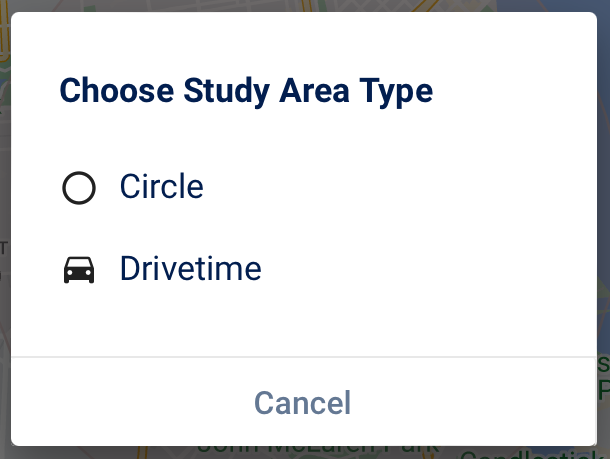
2. A new popup will prompt whether to create a Circle or Drivetime study area. Select the preferred option.
Step 3: Adjust the Study Area Type or Size
- You will be redirected to the map view, where a shape will appear around the selected site. The default size is pre-defined in the menu but can be adjusted:
- To change the size, click on the shape and then on the study area icon located in the blue bar. An edit popup will display options for customization, allowing for the selection of measurement units and size. Choose the preferred option and click ‘Apply’ to proceed.
- If you would like to change the default value of your study area, follow these steps:
- Open the Settings Menu: Locate and click the menu icon in the upper left corner of the screen.
- Access Settings: From the menu, select Settings.
- Adjust Study Area Defaults: Find the options for redefining the default sizes for the Study Area by moving the pin on the bar or typing the desired value. You can modify the settings for Circle or Drive Time and select their respective measurement units.
Step 4: Explore Demographic Data
- Once satisfied with the study area, click on ‘Profile’ and navigate through the available demographic data from the selected region.
- Explore distinct data categories to create insights while on the field or planning a visit.
Step 5: Share the Information
- Click on the ‘Email Report’ button.
- Select Recipients by adding the email addresses of yourself and any other relevant recipients within your organization.
- Choose the report format by selecting either Excel file or PDF.
- Select the data categories to include in the report.
- Include a map of the region if desired.
- Send the report by finalizing the settings and emailing it to the selected recipients.
- After sending the report, you'll find an email in your inbox with a link to download the report. Be sure to check your junk/spam folder if you don't see it.
Related Articles
Study Area Tools
Study Area Tools The study area tools in Sitewise provide additional functionality that helps you get the most out of your study areas. The Profile tab contains many tools allowing you to generate reports, edit projects, and view demographics which ...Circle & Drivetime Study Areas
Quickly and seamlessly profile the demographics of an area of interest by utilizing the many study area tools. In This article will focus on the circle and drivetime option but see all the study area types possible here. Creating a Circle or ...Installing Sitewise Mobile
Installing Sitewise Mobile is a breeze—just like any app on your smartphone or tablet. This free app lets you access all your account data on the go, making it an essential tool for staying connected and productive when you're on the road! Find the ...Polygon Study Areas
Profile the demographics of a custom area of interest. Creating a Polygon Study Area Choosing the Site First navigate to the desired area on the map, using the search bar at the top or by zooming and panning to the desired area. Select the Polygon ...Predefined (Census) Study Areas
A predefined geography, usually consisting of a census defined area, is a standardized geographical unit used for various administrative data collection, analysis, planning, and management functions. These areas may be defined by the public sector, ...